Few things are as frustrating as a charger that keeps disconnecting when you’re low on battery. Whether you’re trying to charge a smartphone, laptop, or tablet, dealing with an unreliable charger can disrupt your day. This issue is often caused by common problems that are easy to fix. This guide covers potential reasons your charger may be disconnecting, along with troubleshooting tips to help keep your device fully powered.
Common Reasons Your Charger Keeps Disconnecting
Several factors can cause your charger to disconnect intermittently, including hardware issues, compatibility problems, and power source instability. Here are the main causes to consider:
1. Faulty Cable or Charger
- Cable Wear and Tear: Over time, cables can become frayed or damaged, especially near the ends. This can cause inconsistent charging.
- Defective Charger Block: The charging block can develop internal issues that prevent it from delivering a steady power flow.
2. Loose or Damaged Charging Port
- Debris and Dust Build-Up: Dust, lint, or other debris can accumulate in your device’s charging port, causing poor contact with the charger.
- Port Damage: Frequent plugging and unplugging or accidental pulls on the cable can wear down the port, resulting in a loose connection.
3. Power Source Issues
- Unstable Power Outlet: Using a faulty or unstable power source can lead to power interruptions.
- Power Strip Overload: If you’re using a power strip with multiple devices plugged in, it could lead to power fluctuation issues.
4. Software Issues and Battery Management Settings
- Power Management Settings: Some devices have built-in power management features that limit or interrupt charging to protect battery health.
- Software Glitches: Sometimes, a software update or background apps can interfere with the charging process.
Troubleshooting Tips for a Charger That Keeps Disconnecting
If you’re dealing with a charger that keeps disconnecting, try these troubleshooting tips to fix the issue:
1. Inspect and Test the Charging Cable
- Check for Visible Damage: Inspect the cable for any visible cuts, fraying, or bent areas. If you see any physical damage, replace the cable with a new one.
- Test with Another Device: Try using the charger and cable with another compatible device to see if the issue persists. If it does, the cable may be faulty.
2. Clean the Charging Port
- Remove Debris: Use a soft, dry toothbrush or a can of compressed air to gently clean out the charging port on your device. Avoid using anything sharp that could damage the port.
- Check for Looseness: After cleaning, plug in the charger and see if it fits snugly. A secure fit usually indicates good contact, which should help with stable charging.
3. Switch Power Sources
- Try a Different Outlet: Plug your charger into a different wall socket to rule out any issues with your power source.
- Avoid Power Strips: Try plugging your device directly into the wall outlet rather than a power strip, which can sometimes lead to unstable power delivery.
4. Adjust Device Settings
- Turn Off Battery Optimization Settings: Some devices, like smartphones and laptops, have battery optimization settings that might interrupt charging. Disable these temporarily and see if the problem resolves.
- Close Background Apps: Background apps may interfere with charging efficiency. Close any non-essential apps to reduce power drain.
5. Update Device Software
- Install the Latest Updates: Ensure your device’s operating system and software are up-to-date. Software updates often come with fixes for power management and charging issues.
- Check for Charging-Related Bugs: Occasionally, new software releases can have bugs affecting charging. Check for any patches or known issues related to charging, and update your device as necessary.
6. Replace or Repair the Charger or Device
- Invest in a Quality Charger: If your charger is still disconnecting, consider purchasing an original or certified replacement. Avoid using cheap or counterfeit chargers, as these can cause damage to your device.
- Repair a Damaged Port: If you find that your charging port is damaged or loose, it may be time to visit a professional repair service to get it fixed.
Preventing Future Charging Issues
Taking a few preventive steps can help ensure that your charger remains reliable over time:
- Handle the Charger Carefully: Avoid bending or stretching the charging cable, especially near the ends. Always unplug by grasping the charger head, not the cable.
- Use Certified Accessories: Opt for manufacturer-approved or certified accessories to ensure compatibility and longevity.
- Keep Ports Clean: Regularly inspect and clean your charging port to prevent debris build-up.
- Avoid Overcharging: Unplug your device once it’s fully charged to prevent overheating and reduce stress on the battery.
When to Seek Professional Help
If you’ve tried all the above troubleshooting steps and your charger still keeps disconnecting, it may be time to seek professional assistance. Persistent charging issues can sometimes indicate deeper hardware problems, like a failing battery or damaged internal components. Contact the device manufacturer or a certified repair technician for further diagnosis and repairs.
Final Thoughts
A charger that keeps disconnecting can be annoying, but the solution is often simple. Whether it’s cleaning the charging port, replacing a faulty cable, or updating your device’s software, these troubleshooting tips can help you restore a reliable charging experience. Following these steps can help prolong the life of your charger and device, keeping you connected and powered up when you need it most.
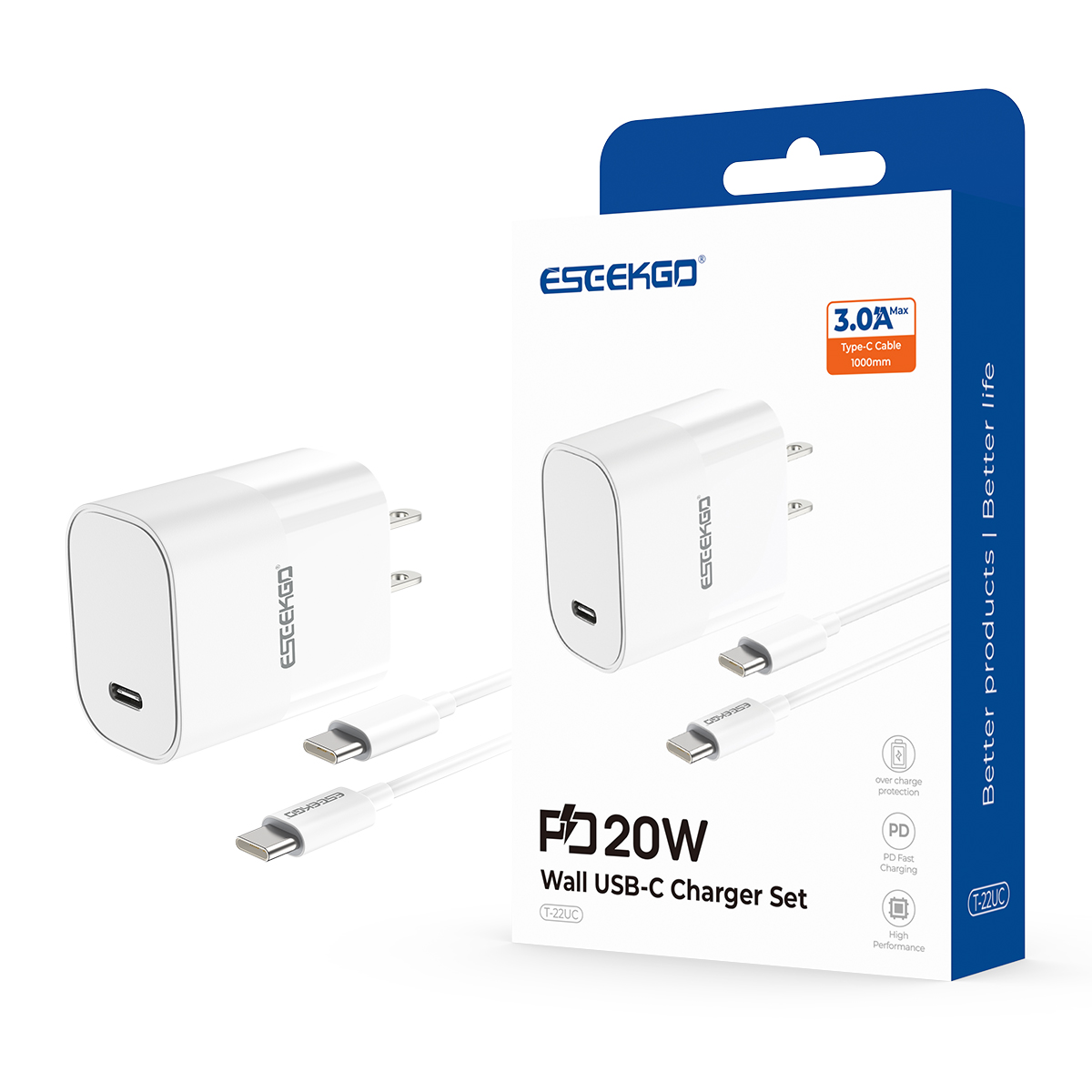
ESEEKGO T-22UC Fireproof PC Travel Adapter With 3.3FT Type-C To Type-C Fast Charging Cable (20W / US)
Fast charging: 20W ultra high power fast charging, improving charging efficiency.
Ports: Type-C interface, double- sided pluggable, convenient to use.
Compatibility: 100-240V wide voltage compatibility, can be used in different areas.
Safety material: Using PC fireproof materials, flame retardant and high-temperature resistant, protecting user safety.

